How to Create an Online Store in Telegram
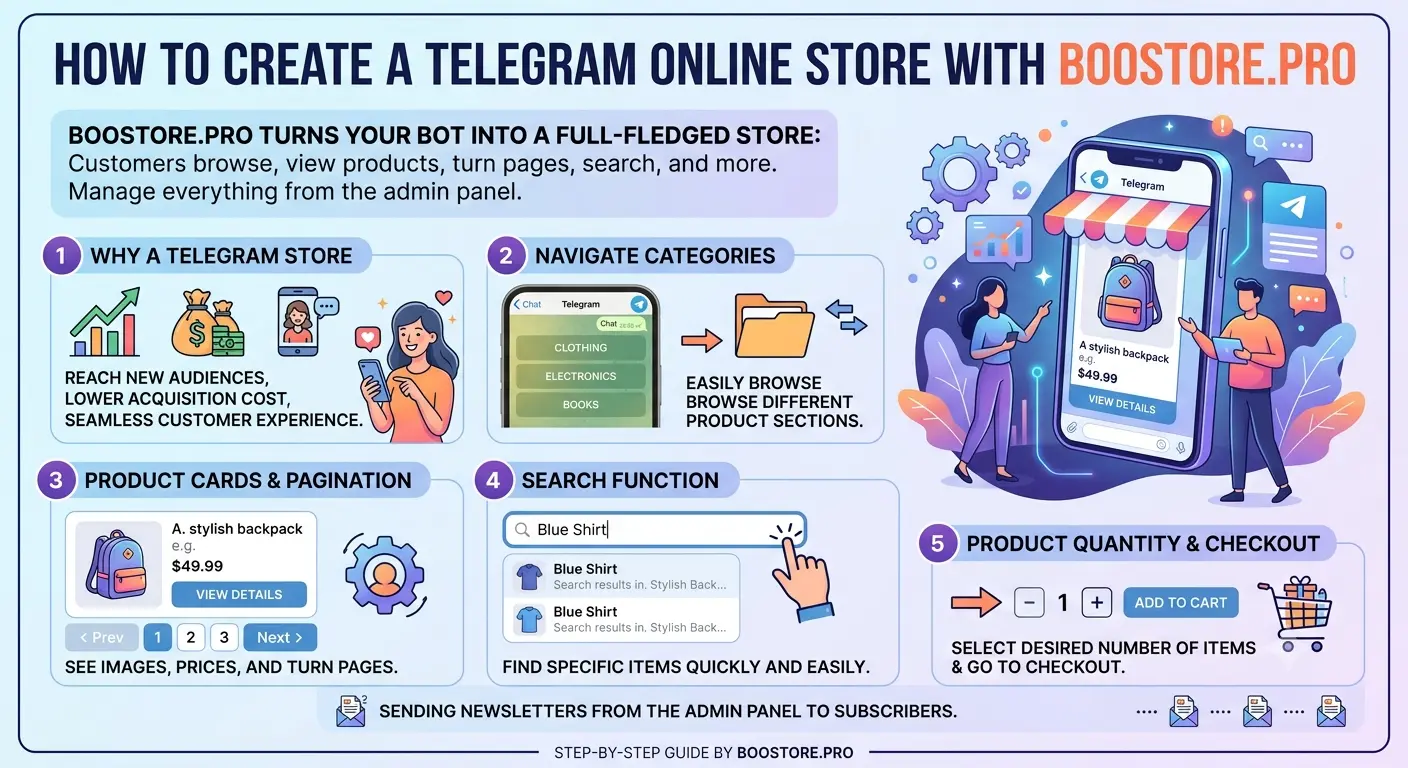
Telegram is more than a channel for newsletters. With BooStore your bot becomes a full online store: a customer opens the bot, browses categories, views product cards with price and image, flips pages and searches. And you send newsletters to subscribers — all from the admin panel. Let's walk through how it works.

📄 Contents
Why a store in Telegram
Customers already live in messengers. A store right in Telegram removes extra steps between "seen" and "bought":
- Catalog always at hand — a customer opens the bot and browses products like in an app.
- Clear product cards — name, price, old price, image, sizes and a link.
- Search — quick jump to the needed product by name, SKU or meta fields.
- Newsletters — you bring subscribers back with promos and new arrivals automatically.
🗂️ Full catalog navigation: categories and subcategories
The bot implements the full catalog structure of your store — a nested category tree:
- The "Categories" button in the main menu opens the top level of the catalog.
- Each category is shown as a button with an icon (if it has an image) and the number of products in brackets.
- Tapping a category, you drill inside — to its subcategories. You can go to any depth of the tree.
- Next to each category there is a "Show products" button: it displays products of that category.
🛍️ Products: cards, prices, images and pagination
Each product is a neat Markdown card with emoji:
- 🛍️ Product name;
- 💰 Price (and old price if discounted) — in the site currency with exchange-rate conversion;
- 🖼️ Image — sent as a real Telegram picture;
- 📐 Sizes / variants — with the correct label (size, color, material, etc.);
- 🔗 Product link.
Products are shown by pages — 10 per page by default. At the bottom is pagination: ◀ Back, page number, Next ▶, quick jump +5 and To end. Each page is a separate message with a set of product cards.

🔍 Product search
The "Search" button in the main menu. The bot asks for a query, you type — and get results immediately. Search works by name, meta title, URL slug, SKU and meta fields, just like the catalog search on the site. Results are also paginated.
🔢 Products-per-page setting
The number of products per output can be set on two levels:
- Administrator — in the channel/bot settings sets the base number of products per page (from 1 to 20) for all subscribers.
- The subscriber himself — in the "Settings" menu can set his own number (from 1 to 40), e.g. 15 or 25. If he chooses "Default", the channel setting applies.
So every user browses the catalog with a comfortable volume — without overloaded messages.
📨 Newsletters of messages, products and promos
A Telegram store is also newsletters. BooStore collects content automatically:
- Promos, new arrivals, bestsellers, discounts, latest — buttons right in the bot, with paginated output.
- Send to all or selected subscribers — with audience settings.
- Scheduled sending — by date and time.
- Collect products by ID or from an article — your own selection for a newsletter.
All product cards in newsletters and selections are styled the same beautiful way — Markdown with emoji, images and sizes.
👥 Subscribers and base
A customer starts the bot — and is automatically added to the subscriber base with language and profile. You manage the base in the admin panel: filters, editing, import and export to CSV/ZIP. A subscriber can change language, link an email, set the products-per-page and unsubscribe — all via the "Settings" menu in the bot.
📲 Order & delivery notifications to the customer via Telegram
Besides the managers' channel, the site owner can create a separate Telegram channel/bot for customers (per site). If a customer is subscribed and places an order with the same e-mail linked to the subscription, they get Telegram notifications:
- Order created — right after checkout (number, items, total, delivery);
- Delivery status changed — on every TTN update (timer or manual): “In transit”, “Arrived at branch”, “Received”, etc.;
Managers/admins get notifications in the common BooStore channel by default (if subscribed). The customer channel works in parallel — seller and customer see the same order in two streams.
Delivery: Nova Poshta, branch #12
Total: $104 · Payment: COD
TTN: 20450123456789
Branch #12, Kyiv — ready for pickup
Built into BooStore
All this already works inside the platform — no third-party services or coding. Just create a store, connect a Telegram bot in the newsletters section — and the bot becomes your showcase and sales channel.
Does the customer get Telegram notifications about order and delivery?
Yes. If the customer is subscribed to your site's separate Telegram channel/bot and checks out with the same e-mail linked to the subscription, they receive order-created and every delivery-status update (TTN, auto by timer) in Telegram. Managers/admins get the same in the common BooStore channel if subscribed. Configure seller vs customer channels separately in notification settings.
🤖 How to Create a Bot and Connect a Telegram Channel
For the store to send broadcasts and work in Telegram, first connect a channel/bot. In the BooStore admin panel go to «Store» → «Store in Telegram». There you will find the sections: My broadcasts, New broadcast, Subscribers, Add subscriber, Export subscriber addresses, Import CSV and Channels / Bots. First you need to create a channel (bot).
How to Create a Bot and Connect a Channel
- Open the «Channels / Bots» section and click «Add channel».
- Open @BotFather and send the command /newbot.
- Enter a bot name and username (must end with bot, for example MyShopNewsBot).
- Copy the issued API Token (like 123456789:AAH…XYZ) and paste it into the field above.
- Click «Save channel». The system checks the token and automatically sets the webhook.
- Give subscribers the bot link: https://t.me/your_username.
- A user presses /start — they are automatically added to the subscriber database.
- To send messages to the channel (posting) — add the bot as a channel administrator and enter a name like @channel_name in the «Channel ID» field.
📤 Sending Messages to Groups
The same bot can also post broadcasts to a regular group (for example, t.me/bballstock). For this the bot must be added to the group.
- Open your group in Telegram → tap the group name → Add members.
- In the search enter your bot’s username (the one ending in bot) and add it.
- So the bot can send messages, it is better to give it admin rights: in the member list tap the bot → Promote to admin → enable Post messages.
- In the channel/group form, in the «Channel ID» field, specify the group either as @group_name (for example @bballstock) or as the group’s numeric chat_id (it is negative, for example -1001234567890).
- To find out the numeric chat_id of the group — forward any message from the group to the bot @userinfobot, or go to t.me/bballstock and copy the group address from its name.
🔗 What a webhook is and why it is needed
A webhook is a technical «bridge» between Telegram and your site. When a user writes to your bot (presses /start, taps a button, etc.), Telegram does not store it by itself but calls the webhook address and passes the message to your site. The site processes it (adds the subscriber, replies, saves the language choice). It is not a link to open in a browser — it is an address Telegram calls your site by (server → server) to pass users’ incoming messages. You do not need to configure it manually: when you save the channel, the system itself sets the webhook and passes it to Telegram. The address is needed only for reference/diagnostics.
📨 Broadcasts: Test Send, Products and Articles, Audience, Schedule
After connecting the channel/bot, the broadcast section becomes available. It has a test send (check the message before sending it to everyone) as well as creating a broadcast:
- «Create a broadcast based on products» — select products from the catalog, they will be sent to subscribers with cards and links;
- «Create a broadcast based on an article» — select a blog article to broadcast.
You can specify a list of products and articles for the broadcast. You choose the audience yourself: only subscribers with a linked account, those who provided an e-mail, or all subscribers. There is also a «Send schedule» — you can send immediately or schedule it for a specific time.
❓ Frequently asked questions about a Telegram store
Can the bot show the whole store catalog?
Yes. The bot has full navigation: "Categories" with a subcategory tree, "All products", "Search" and promo/new/sale selections. Products are shown by pages with cards (price, image, sizes, link).
How to set the products-per-page?
The administrator sets the base value (1–20) in the channel settings. A subscriber in the "Settings" menu can choose his own (1–40) or return to the default value.
Is there product search in the bot?
Yes. The "Search" button — you type a query, the bot searches by name, meta title, URL slug, SKU and meta fields, like the catalog search on the site, and shows results by pages.
In what currency are prices shown?
The price is shown in the site currency with automatic exchange-rate conversion. The old price is also shown next to a discount.
Are product images and sizes shown?
Yes. The image is sent as a real Telegram picture, and variants (size, color, material) — with the correct label for each type.
How is this different from regular Telegram newsletters?
Besides newsletters, the bot works as a catalog: a customer browses categories, views products, searches and flips pages. It is a full showcase in the messenger, not just one-way newsletters.
Is a separate service or code needed?
No. Everything is built into BooStore: create a store, connect a bot in the newsletters section — and the bot is ready to show the catalog and accept newsletters.